- Published on
Building a University Portal with Power Pages #5
- Authors

- Name
- Calum Harrison
Quick recap
In this series, I’m documenting the process of building a university portal with Power Pages, sharing practical tips along the way :)
In part 4 I said I would cover changing the dummy data with real data from Dataverse using Fetch XML and Liquid.
There is a lot of liquid to write so let’s cover what I used for the dashboard.

Where to start with Liquid
First task is to identify on the dashboard where I will use liquid to fetch data from Dataverse. The highlighted areas should cover where data will be fetched.
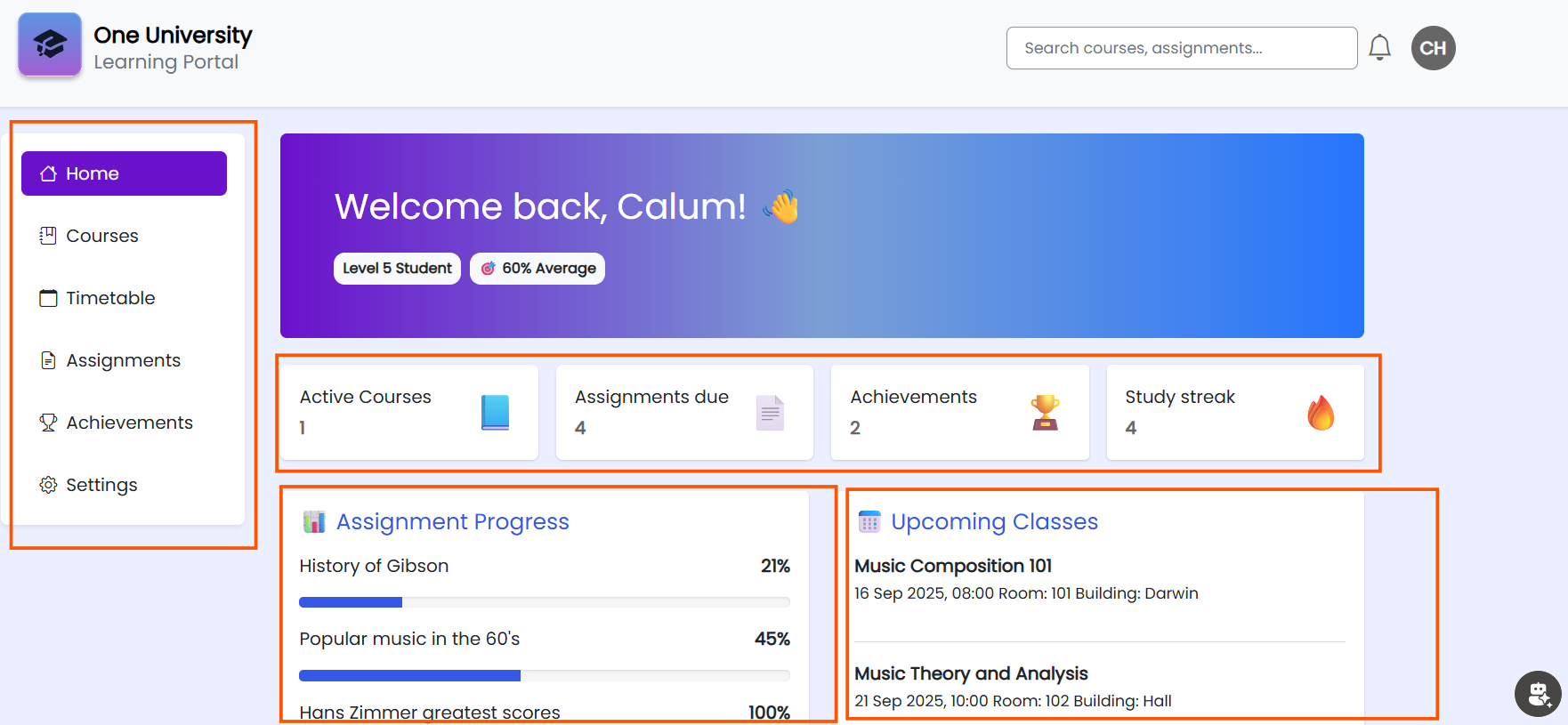
Table permissions
I set the table permissions required, here is a example of how to get student assignments from the student table.
The main thing is to make sure you don’t just set the permissions to global and the contact and account are used heavily in the entity relationship diagram so you can use this to refine access. For example, the student is connected to the contact table.

Liquid Web Templates
Once the permissions were in place, I can connect to Dataverse and display data. To do this, I downloaded the Fetch XML from Dynamics 365.
In the example below, the code get’s the student related to the logged-in contact and is stored as a web template.
{% assign current_date = now | date: "yyyyMMddHHmmss" %}
{% assign condition_cache = ' <condition attribute="ch_name" operator="ne" value="' | append: currentDate | append: '" />' %}

{% fetchxml student_details %}
<fetch version="1.0" mapping="logical" no-lock="false" distinct="true">
    <entity name="ch_student">
        <attribute name="ch_studentid" />
        <attribute name="ch_studystreak" />
        <attribute name="statecode" />
        <filter type="and">
            <condition attribute="statecode" operator="eq" value="0" />
            <condition attribute="ch_contact" operator="eq" value="{{ user.id }}" />
        </filter>
    </entity>
</fetch>
{% endfetchxml %}
The two lines of the code above, forces the query to run every time. It’s a handy tip to make sure you always retrieve the latest version of data.
With the student identifier available, I passed this as a parameter to the web template below that get’s the student assignments.
{% assign current_date = now | date: "yyyyMMddHHmmss" %}
{% assign condition_cache = '<condition attribute="ch_newcolumn" operator="ne" value="' | append: currentDate | append: '" />' %}

{% fetchxml student_assignments %}
<fetch version="1.0" mapping="logical" no-lock="false" distinct="true">
    <entity name="ch_studentassignment">
        <attribute name="ch_progress" />
        <filter type="and">
            <condition attribute="statecode" operator="eq" value="0" />
            {{ condition_cache }}
        </filter>
        <link-entity name="ch_assignment" from="ch_assignmentid" to="ch_assignment" link-type="outer" alias="a">
          <attribute name="ch_name" />
        </link-entity>
        <link-entity name="ch_enrollment" alias="enr" link-type="inner" from="ch_enrollmentid" to="ch_enrollment">
            <filter type="and">
                <condition attribute="statecode" operator="eq" value="0" />
                <condition attribute="ch_student" operator="eq" value="{{ studentid }}" />
            </filter>
        </link-entity>
    </entity>
</fetch>
{% endfetchxml %}
Displaying data
With the data available it was time to present this to the web page. The below code demonstrates how the student assignments are displayed as a card.
 <div class="row g-4">
      <div class="col-md-6">
        <div class="card p-3">
          <h5 class="mb-3 text-primary">📊 Assignment Progress</h5>
          {% if student_assignments_result.size > 0 %}
              {% for student_assignment in student_assignments_result %}
                  {% assign progress_raw = student_assignment.ch_progress | default: 0 %}
                  <!--Convert integer to string -->
                  {% assign progress = progress_raw | string %}
                  {% assign style = 'style="width: ' | append: progress | append: '%;"' %}
                  <p>{{ student_assignment['a.ch_name'] }} <strong><span class="float-end">{{ student_assignment.ch_progress}}%</span>
                  </strong>
                  </p>
                  <div class="progress mb-3">
                    <div class="progress-bar" {{ style }}></div>
                  </div>
              {% endfor %}
          {% else %}
          <p>No active assignments found.</p>
          {% endif %}
        </div>
      </div>
Full structure of the code on the dashboard page.
    <!-- Fetch student details -->

    {% include 'University_FetchStudentDetails' %}
    {% assign student_details_result = student_details.results.entities %}

    <!-- Fetch student assignments -->
    {% include 'University_FetchStudentAssignments' studentid: student_id %}
    {% assign student_assignments_result = student_assignments.results.entities %}

    <!-- Display student assignments -->

    <div class="row g-4">
          <div class="col-md-6">
            <div class="card p-3">
              <h5 class="mb-3 text-primary">📊 Assignment Progress</h5>
              {% if student_assignments_result.size > 0 %}
                  {% for student_assignment in student_assignments_result %}
                      {% assign progress_raw = student_assignment.ch_progress | default: 0 %}
                      <!--Convert integer to string -->
                      {% assign progress = progress_raw | string %}
                      {% assign style = 'style="width: ' | append: progress | append: '%;"' %}
                      <p>{{ student_assignment['a.ch_name'] }} <strong><span class="float-end">{{ student_assignment.ch_progress}}%</span>
                      </strong>
                      </p>
                      <div class="progress mb-3">
                        <div class="progress-bar" {{ style }}></div>
                      </div>
                  {% endfor %}
              {% else %}
              <p>No active assignments found.</p>
              {% endif %}
            </div>
          </div>
Liquid thoughts
I only covered the student assignments but the same approach was applied to display student achievements, courses and schedules. I find that using Liquid is trial and error and I definitely faced a few issues along the way :D

The main thing is to keep going and to make sure the security of the portal is covered well.
If you’re not familiar with Liquid, then check this LinkedIn post where I cover how to learn it :)
What’s next?
For next time I will be focusing on building the other student pages using out of the box features like forms and lists etc.
If there is anything that I’ve covered that would be useful to cover in more detail please let me know in the comments or LinkedIn and I can add it to the backlog for the future :)
As always, thanks for reading and take it easy!
This is a personal, non-work project just for learning and sharing.